TERMINAL + LOVE좋아하다好きSUKISKI
Get Terminalski, your ultimate terminal app!
Did you know you can log into your servers in SSH using Windows Hello?
Try Terminalski! You can seamlessly SSH into your servers using the same fingerprint, face ID, PIN or whatever your computer has for Windows Hello. You don't have to remember or use long, random, mixed uppercase, lowercase, symbols and black magic numbers for your password to be secure. Simply use Terminalski with Windows Hello that utilizes all the security hardware features already built into your computer!
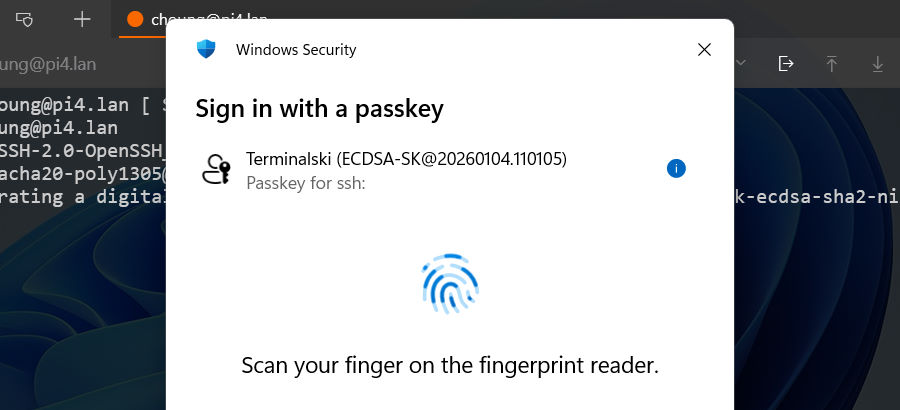
Terminalski also natively supports external security devices such as PIV smart cards and FIDO2 security keys (ex. YubiKey). By using such external devices along with the Home Folder feature of Terminalski, you can instantly set up your Terminalski working environment, i.e., terminal window layout, address book entries, color schemes etc., and securely SSH into your servers from any computer!
Terminalski is not just another SSH client. It is a fresh new take on modern command-line interface that elegantly makes your text terminal life simpler and enjoyable!
TEXT TERMINAL FOREVER!
FEATURE HIGHLIGHTS
Native Support for Security Hardware
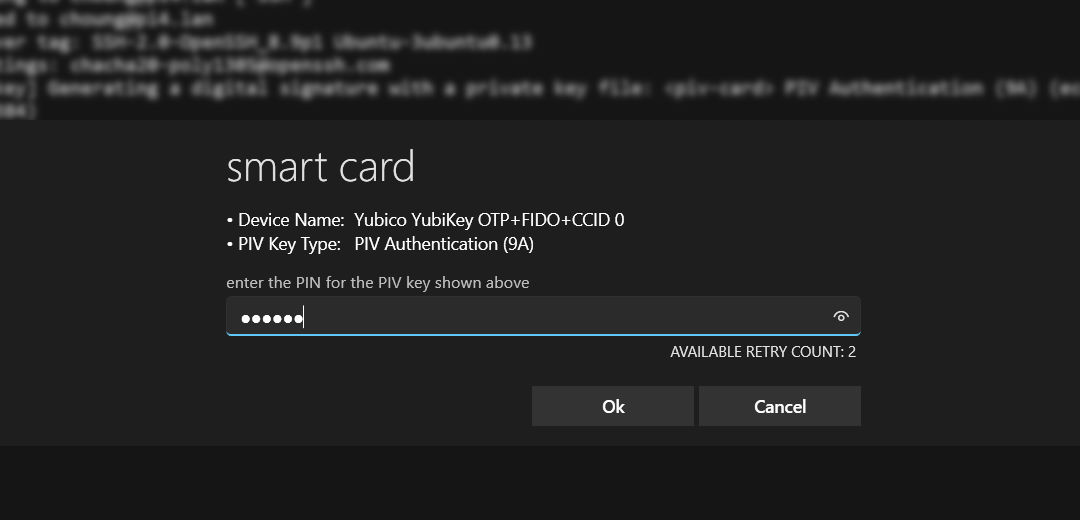
If you have a PIV smart card or a YubiKey, you can use it with Terminalski through Windows Hello just like any other Windows Hello compatible security devices such as fingerprint readers. But you can also use it directly without Windows Hello; you just need to plug it in and you are ready to use it for SSH public key user authentication in Terminalski. No need to pre-register it with Windows Hello or any third-party tools!
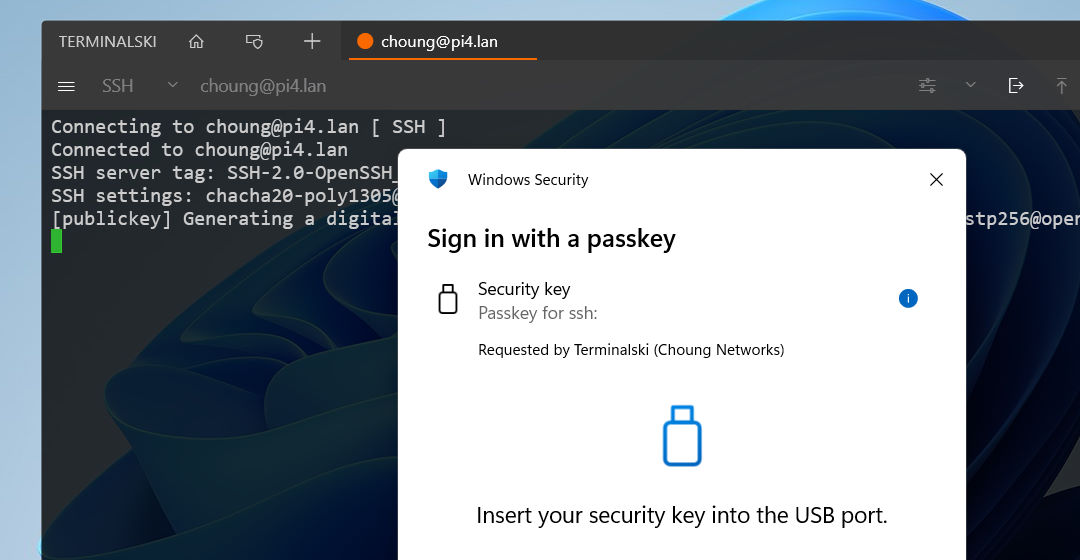
Are you using a FIDO2 security key for logging into your website? You can also use that same security key for logging into your SSH server in Terminalski! You simply need to generate its paired private key in Terminalski and use it for SSH public key user authentication. When your SSH server requests a verification for that private key, just plug in your security key and tap it for your confirmation!
Built-in SFTP/SCP/XModem/ZModem
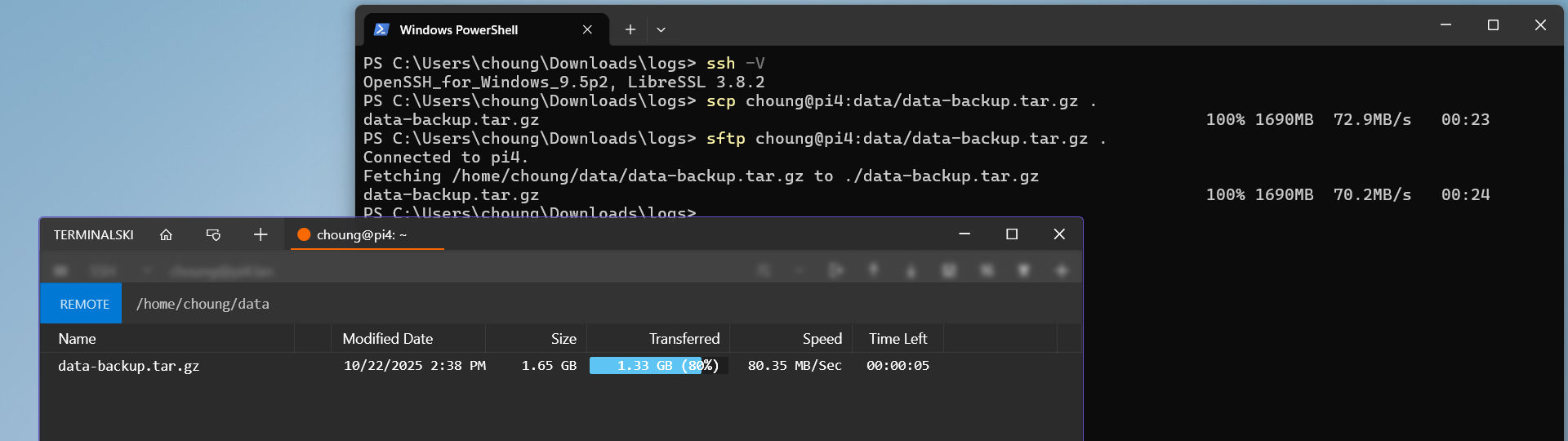
Need to upload files while connected to your server in SSH? Just drag-and-drop or copy-and-paste files from Windows File Explorer to the terminal screen you are working on! Terminalski can detect the remote folder you are in and upload your files to that folder automatically. For downloading files, press CTRL+PageDown and simply select the files you want to download.
Terminalski also supports ZModem and XModem file transfer protocols for legacy devices that do not support SSH.
Seamless Integration of Windows IME
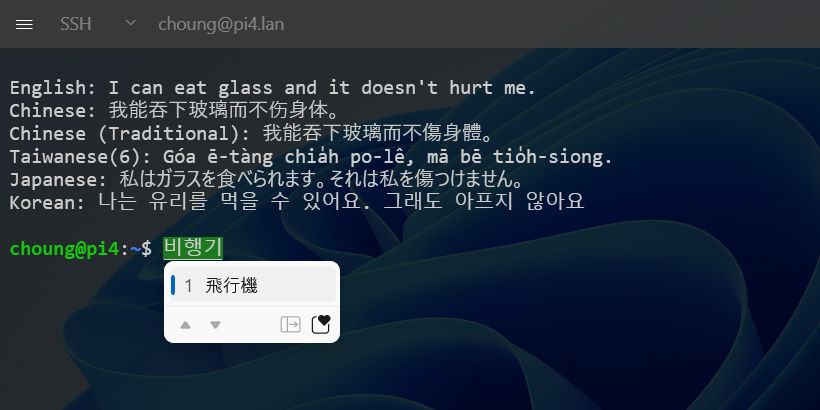
Terminalski seamlessly supports all the character code pages and input methods installed on your Windows. For character input methods that require compositions such as Chinese/Japanese/Korean, Terminalski delays sending the characters until you enter a non-composition-required character (ex. alphabets, space, numbers and etc.).
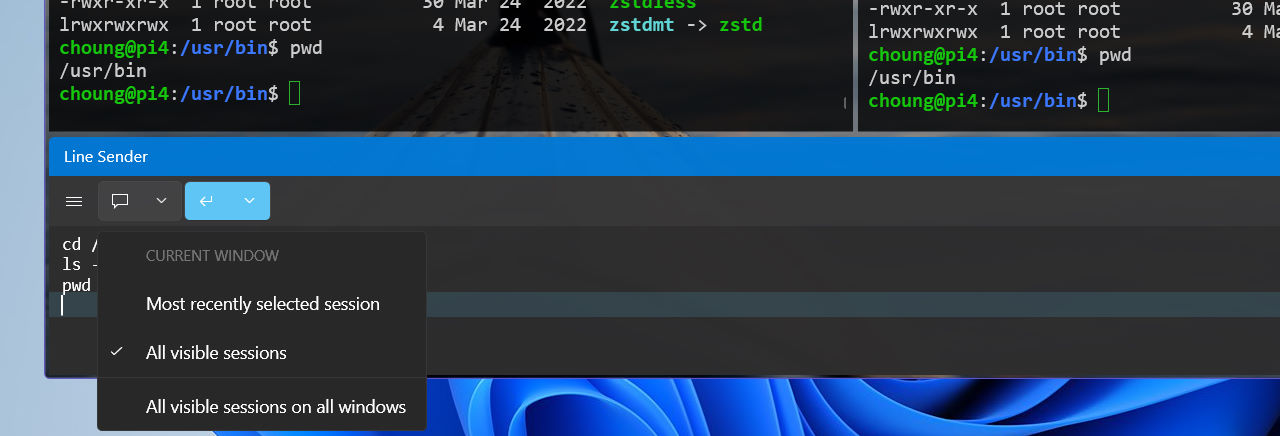
Line Sender
Line Sender can be handy when you have a slow connection or need to send the same set of commands repeatedly. Each text line you enter in Line Sender can also be automatically sent to multiple terminal sessions simultaneously.
Pressing ENTER key sends the full line regardless of the current cursor position. If you wish to send the line up to the current cursor position and start a new line from that position, press CTRL+ENTER.
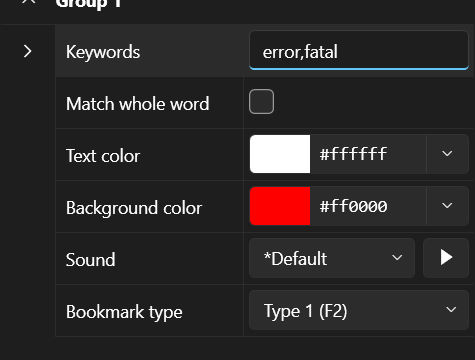
Watchbird
When you enable Watchbird, Terminalski feeds incoming text data to its built-in text editor and highlights the keywords you had set up. You can also configure Watchbird to automatically play sound or set a bookmark when any one of those keywords is detected.

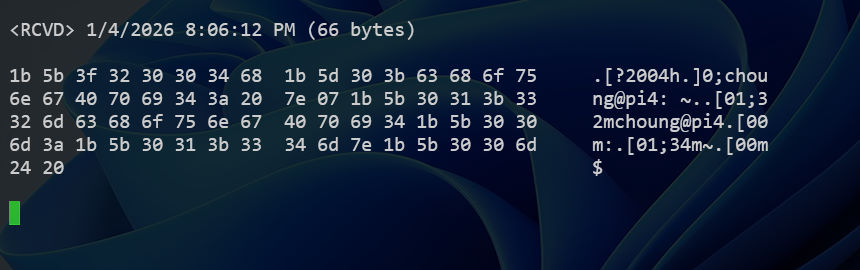
Hex Mode
Want to check the raw data output from your server? Enable the Hex Mode and see the output in hexadecimal format; Terminalski prints out the raw data as it receives from your server including control characters and symbols. It should be handy when you are studying or debugging the communication protocol your server or device uses.
Direct File Printing
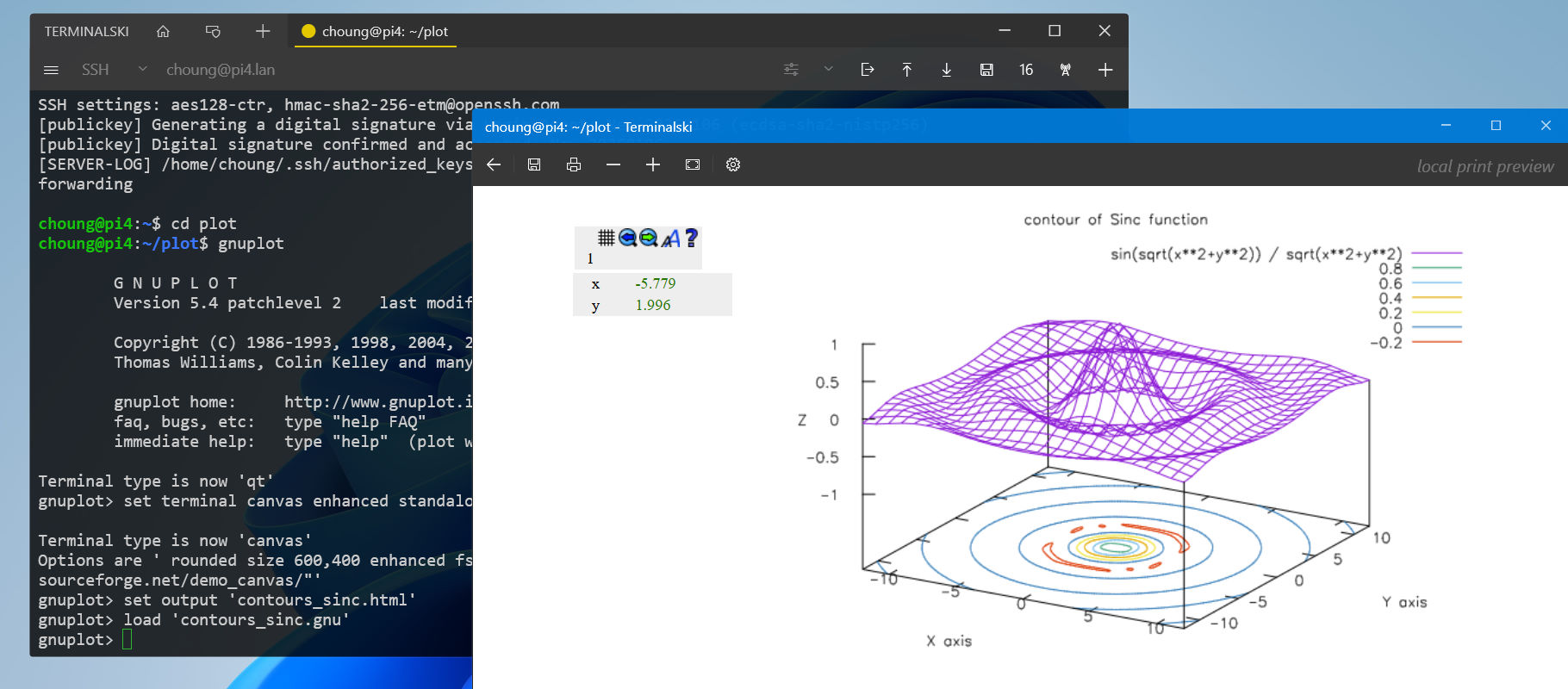
Along with traditional local printing options that can redirect received text to a printer, Terminalski newly introduces Direct File Printing that natively supports previewing and printing common file types such as plain text, HTML, PDF, PNG, JPG etc. over SSH or any connection type supported in Terminalski.
Customizable Terminal Screen Layout
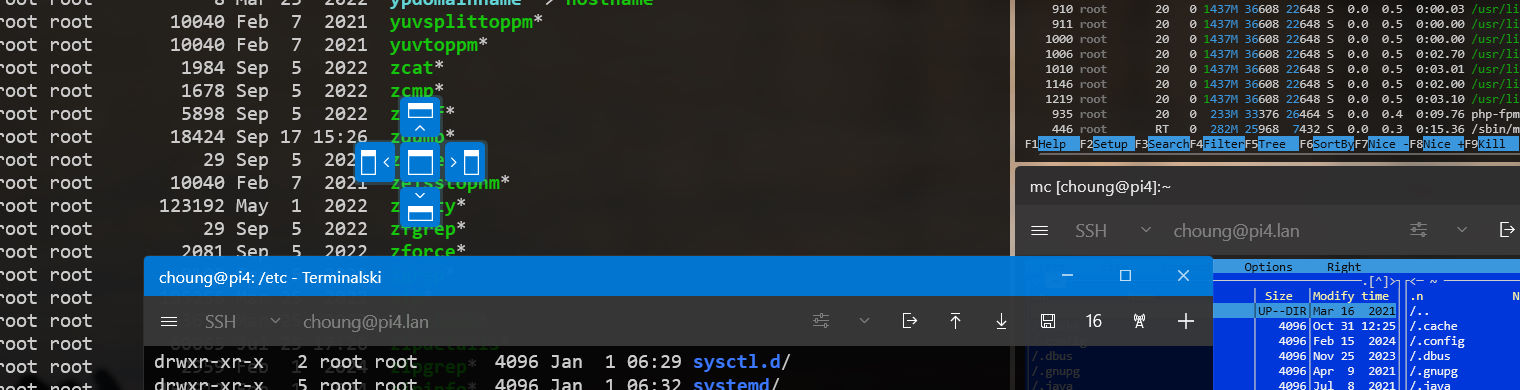
Unlike other terminal emulators where you can only see one terminal screen at a time, you can customize terminal screens in Terminalski like the editor panes in Microsoft Visual Studio; you can open multiple terminal screens and freely group or dock them.
Home Folder
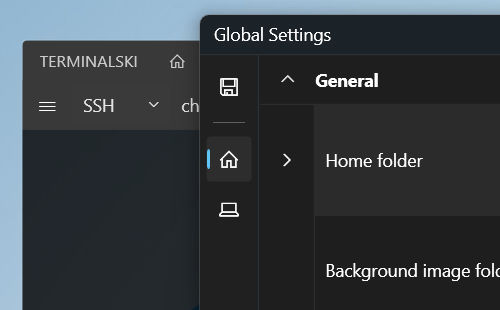
Terminalski stores all its essential settings such as address book entries, SSH private keys and keyboard mappings to its Home Folder.
Want to automatically synchronize your settings across multiple computers? No problem! Simply use OneDrive or any cloud-based file service that supports creating local virtual folders. You then just need to set one of those virtual folders as your Home Folder; all your Terminalski installations across multiple computers can now have the same settings just by pointing their Home Folder to that same virtual folder.
Are you ready for Terminalski?



Terminalski version 1.1.0 improves SSH for connecting to legacy devices using RSA private keys
Terminalski now properly loads RSA private keys in PEM format (PKCS#1). OpenSSH stopped using the PEM format for RSA private keys with version 7.8 (released in year 2018). OpenSSH ssh-keygen can easily convert

Enter 'MYTERMINALSKI20' and get 20% off! It ends 07/31/2026!
We prepared another 20% off coupon code for purchasing Terminalski Standalone licenses. Our first coupon code was originally prepared for our users who purchased Token2Shell licenses via Microsoft Store, but we decided to offer it

Terminalski version 1.0.4 fixes Microsoft Store related issues
Seeing an error message while purchasing a Terminalski subscription? The new version 1.0.4 addresses such problems related to Microsoft Store and purchasing subscriptions. There are no changes to the Standalone version, but its