Do you use Windows Hello for logging into Windows? You can use the same Windows Hello for logging into your SSH servers; you simply need to generate a new private key linked to Windows Hello and use it like a regular private key for SSH 'publickey' user authentication. The following outlines how you can set that up.
Open 'Private Keys' window

Generate a new private key
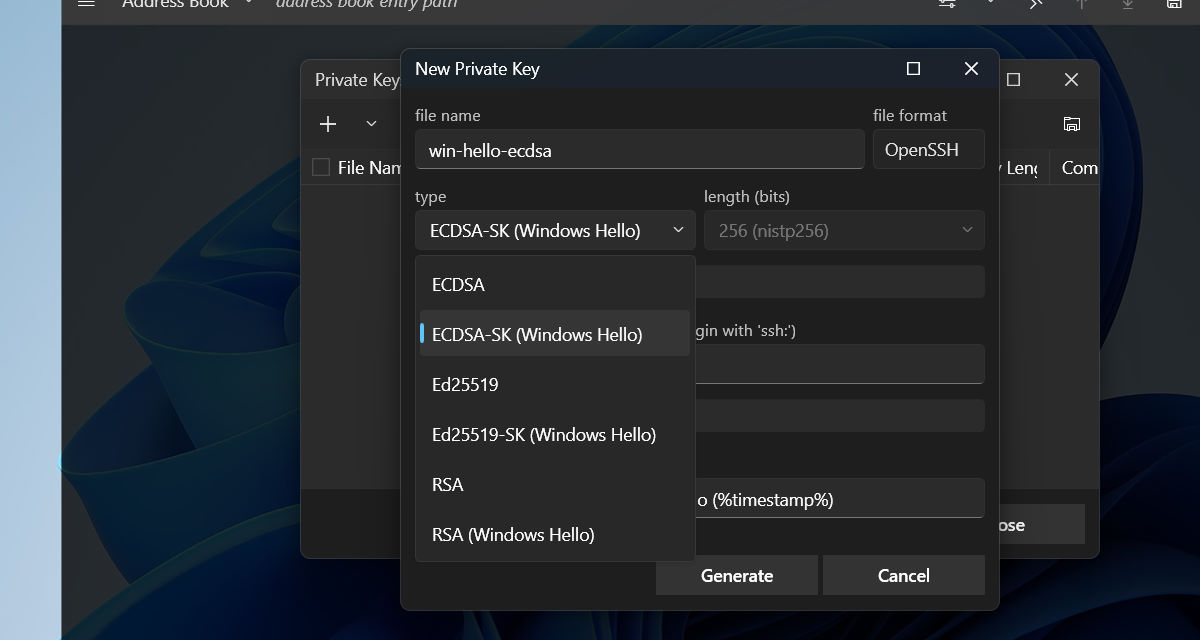
Terminalski uses two methods for generating Windows Hello based private keys; one is traditional key-manager method, and the other is website-style 'passkey' method. When you generate an RSA private key, Terminalski uses the key-manager method that supports using built-in security features such as fingerprint for both Windows 10 and Windows 11. For ECDSA-SK and Ed25519-SK private keys, Terminalski uses the website-style passkey method.
Regardless of the methods, when you generate a private key with Windows Hello, the actual private key is *not* stored in the private key file that Terminalski creates; the file is just a placeholder for the real private key stored on your selected security device (ex. TPM on your Windows device, FIDO2 security key, etc.).
Please be aware that when you select your computer for storing a private key in Windows Hello, you *cannot* import or export the private key; it can only be newly generated.
Windows Hello also strictly manages private keys by Windows user accounts. Hence you must use the same computer and Windows user account in order to correctly access your Windows Hello private keys from Terminalski; even if you are using the same private key file created in Terminalski and using the same fingerprint or PIN, Windows Hello will deny accessing the private key if you are logged in with a different Windows user account.
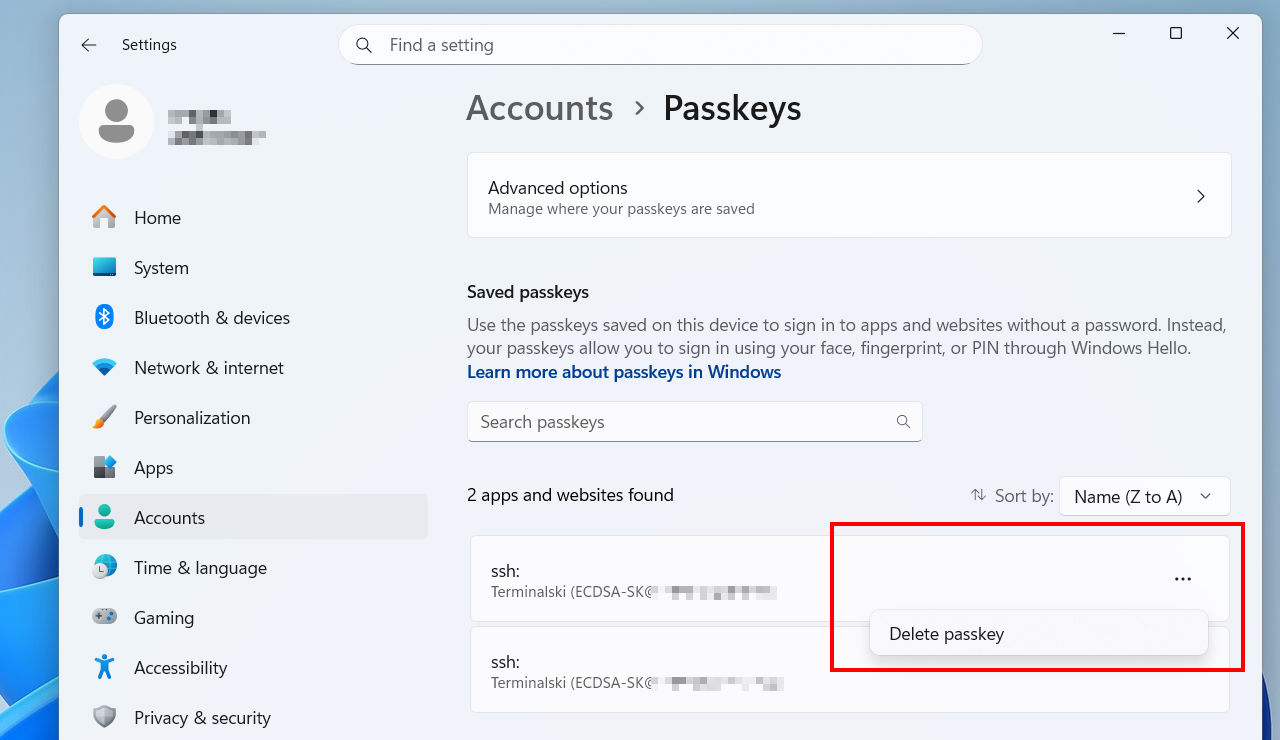
When you delete Windows Hello based private key files, Terminalski also tries to automatically remove their associated entries in Windows; . However, if the associated entries are stored in external security devices, you might need to manually remove the entries using the tools and apps provided by your security device manufacturers (ex. Yubico Authenticator).
The following table summarizes the differences and usages of the private keys generated with Windows Hello.
| Private Key Type | Is it stored in OpenSSH file format? | Can Windows built-in security features (ex. fingerprint, PIN, etc.) be used? |
| RSA | No | Yes |
|
'Login Agent' in Terminalski can be used as an OpenSSH agent that provides digital signing services to other SSH clients. Hence you can transparently use the private keys linked to Windows Hello with Windows built-in SSH clients and tools. However, Windows Hello can only generate SHA256 digital signatures for RSA private keys. This can cause connection failures if your SSH client is configured to prefer ssh -A -o PubkeyAcceptedAlgorithms=rsa-sha2-256 yourid@hostname |
||
| ECDSA-SK | Yes | Yes (Requires Windows 11) |
|
If you are using Windows 10, you must use an external device that supports ECDSA private keys such as FIDO2 security keys. |
||
| Ed25519-SK | Yes | No |
|
Windows 10/11 does not support storing Ed25519 private keys on a local computer for Windows Hello, hence you need an external device that supports it such as FIDO2 security keys. |
||
Update your SSH 'publickey' user authentication
Once you have your new Windows Hello based private key file, you can use it like a traditional private key file for SSH 'publickey' user authentication. Hence, you simply need to copy its public key to Windows clipboard and paste it to ~/.ssh/authorized_keys file on your SSH server. The following post has more detailed information about setting up the SSH 'publickey' user authentication: